As it may take long time to turn on the 2-step verification, by this if ever your account gets hacked, then because of this, the hacker is not able to open your account, if he finds out the password too.
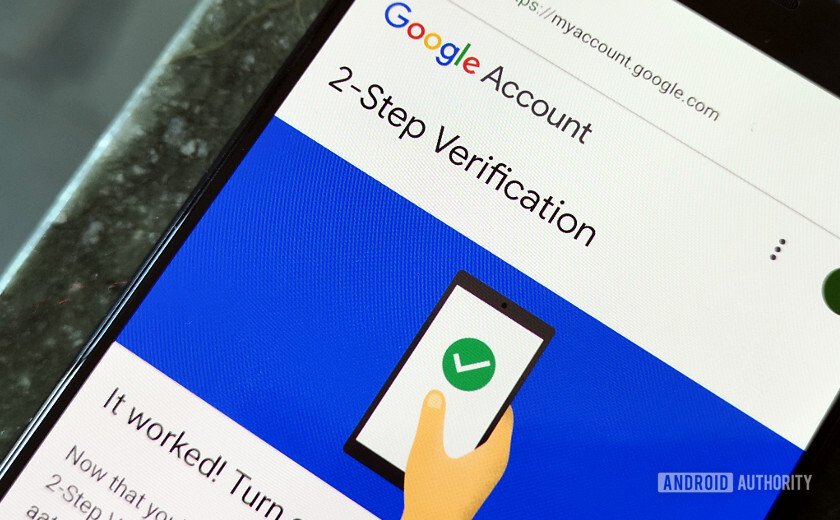
Note! Once you turn ON you have to get(download) the given passcodes, the given you can find on the given icon of an aeroplane. And if you want to login to your account to manage your business if you are away from your smartphone.
Step 1 : Go to your google app
Step 2 :Click on the ‘avtaar/image or a starting letter of your name’ on the top-right corner of the google
Step 3 :Click on ‘manage your google account’, below the active account on your google.
Step 4 :Go to ‘security’, scroll down and tap on the 2-step verification given in the list
Step 5 :Then, insert your ‘password’ that is required.
Step 6 :Again, insert your password so that the google can verify that it’s really you.
Step 7 :Then ‘allow’ given on the bottom as in shape of button.
Step 8 :Then, again by giving your number from which you want to access and verify your country before allowing.
Step 9 :Then, insert the given code or otp on your message box either it can automatically let you to the next step or you have to click on next.
Step 10 :Here, now you have turned on the 2-step verification for your security. But remember as I say on the above statement you have to click on passcode with a aeroplane icon, w here you have two options either you can download and save it personally or print it and keep it safe but remember one of your passcode that will be used in your next sign in. But if are in afraid of multiple sign in, so don’t worry you can refresh or get new passcode by entering to your 2-step verification
 Winserc
Informative!
LikeLike